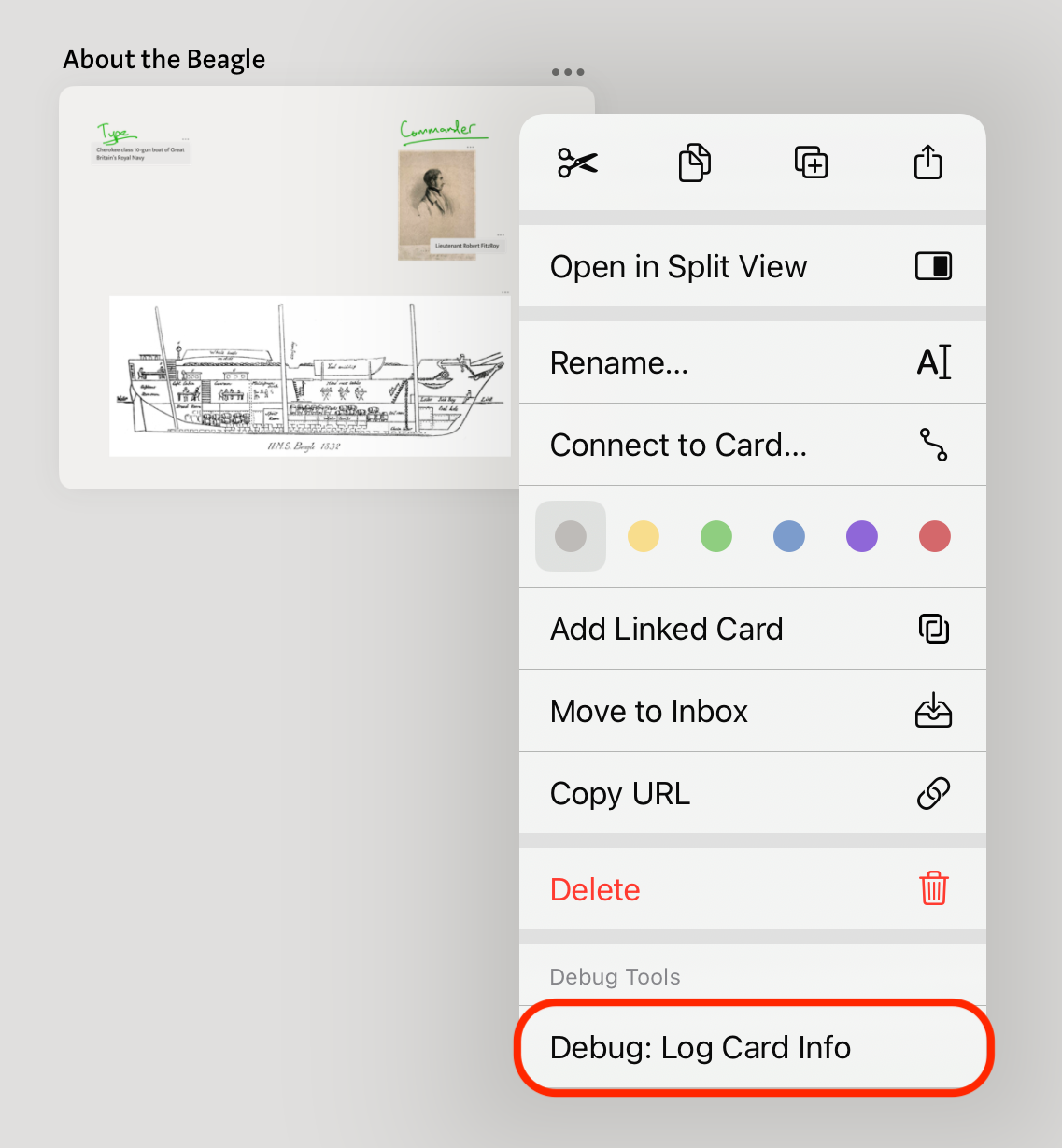
Log a Card’s Debug Information
When talking with Muse support about a bug, you may be asked to log additional card-specific information. Extra verbose information about a problematic card can help debug the root cause of an issue. The following steps walk through enabling extra debug menus in Muse to log card-specific information.
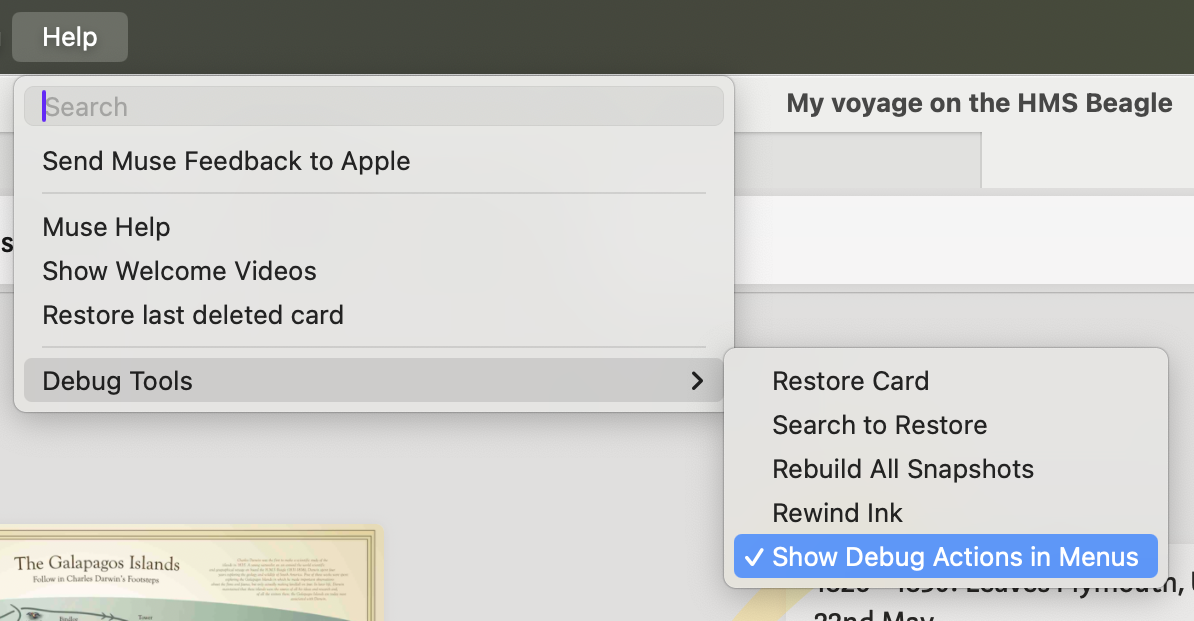
On Mac
- Open the Help Menu → Debug Tools submenu → Toggle the Show Debug Actions in Menus item
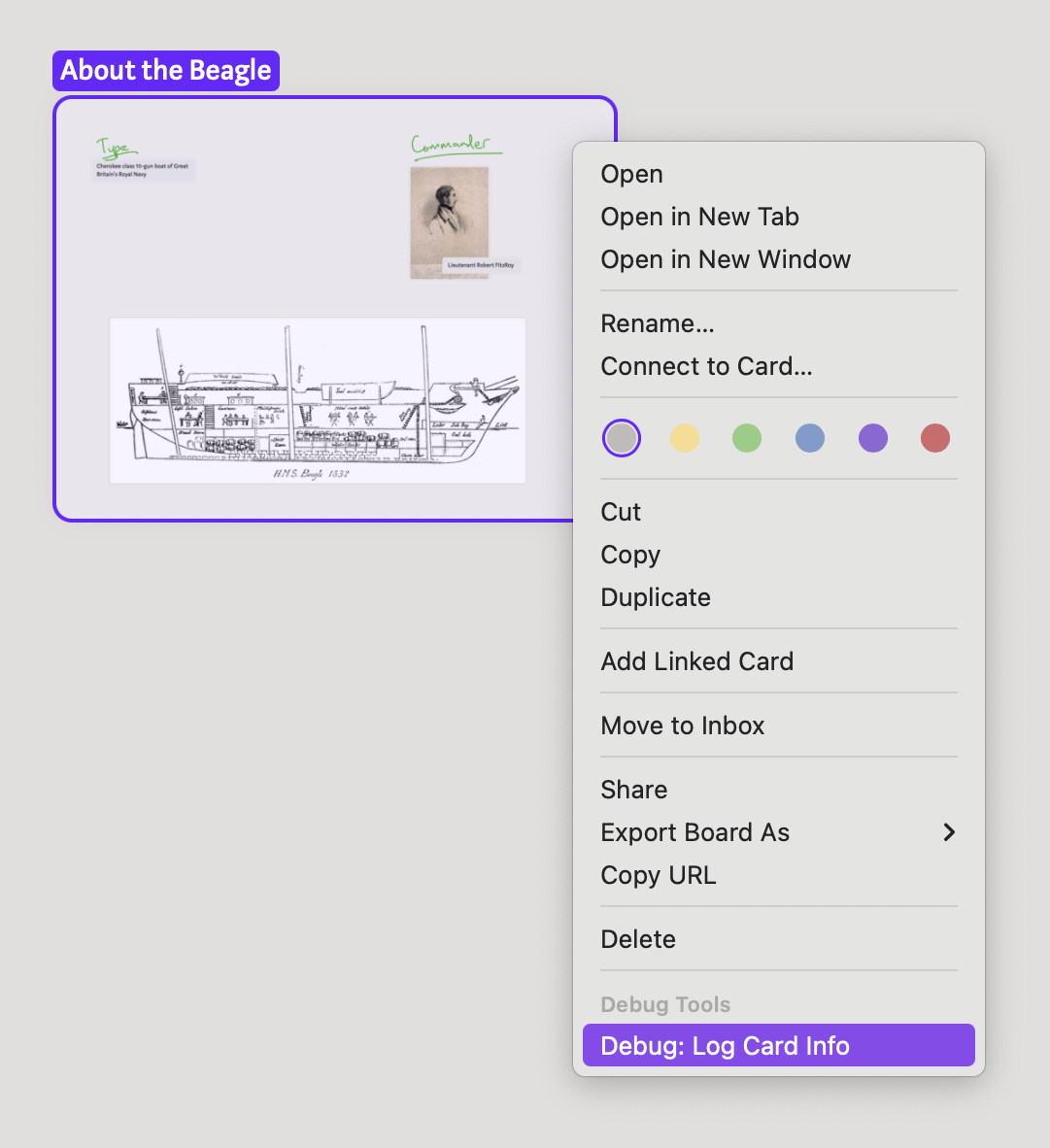
- Right-click the card to open its context menu
- Choose “Debug: Log Card Info”
- Repeat for as many cards as Muse Support requested, and then export debug logs
On iPad
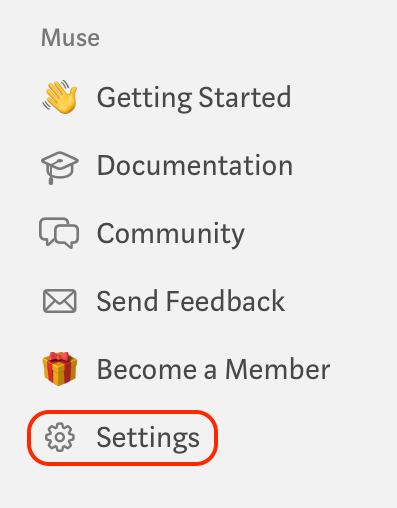
- Settings link in Muse sidebar
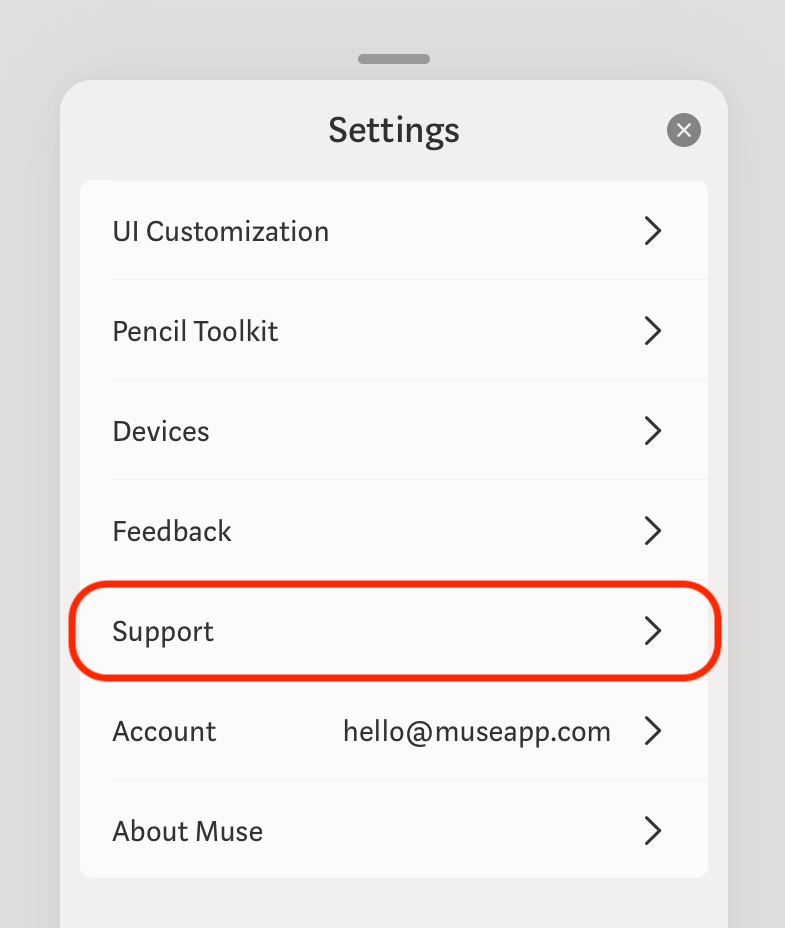
- Tap Support
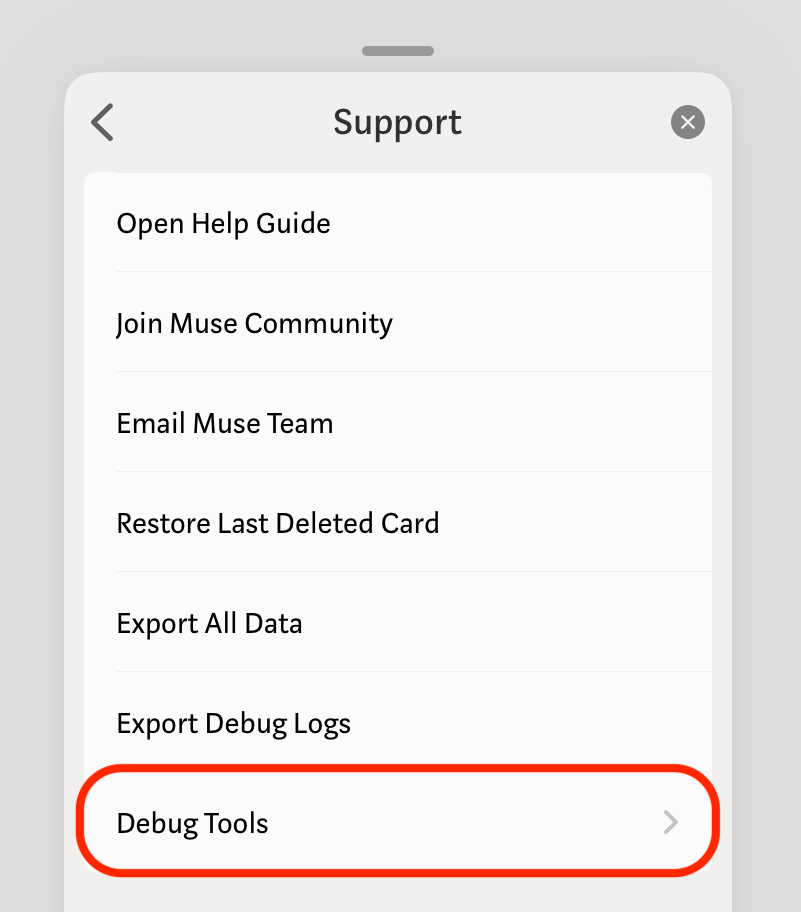
- Tap Debug Tools
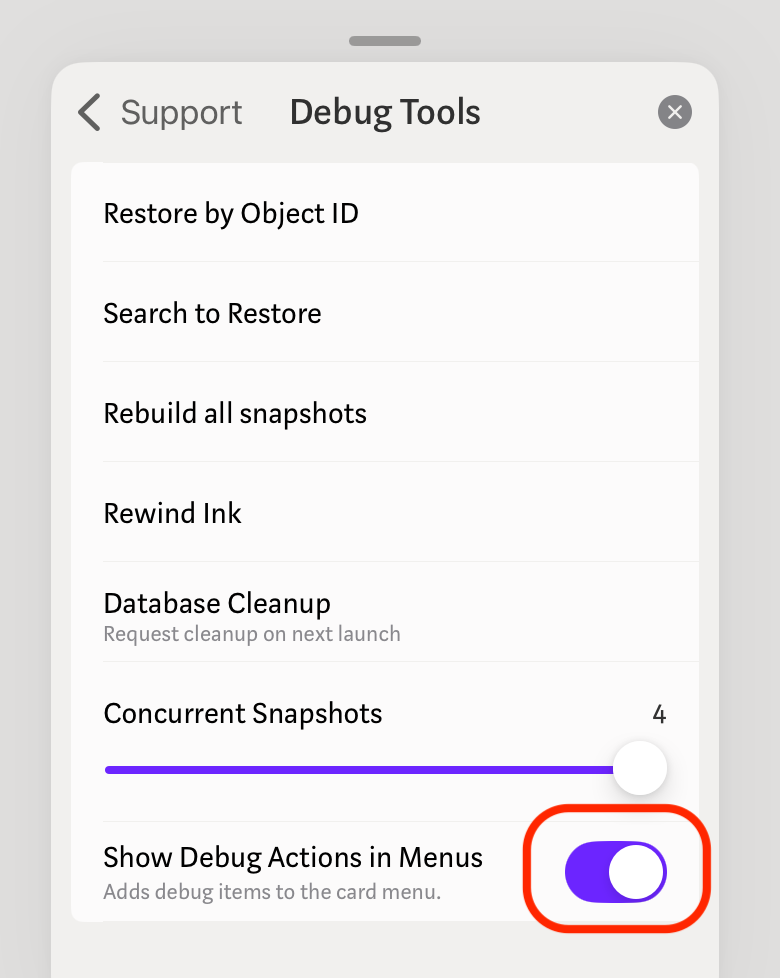
- Toggle Show Debug Actions in Menus
- Open the card’s context menu, and choose “Debug: Log Card Info”
- Repeat for as many cards as Muse Support requested, and then export debug logs